Backup & Restore lets you create snapshots of your QwenPaw instance: visually create, export, import, and restore your entire agent environment. It is designed for scenarios such as rolling back before a version upgrade, migrating between machines, or keeping a safety net before risky changes.
Sidebar: Settings → Backup
A backup is a single zip file (stored at ~/.qwenpaw.backups/<backup_id>.zip) that may contain up to four kinds of content:
| Module | Path | Actual content |
|---|---|---|
| Agent workspaces | ~/.qwenpaw/workspaces/<agent_id>/ |
Every file inside each agent's workspace, e.g. persona files, memory, skills, chat history, and channel configs (including channel credentials such as bot_token and app_secret). |
| Global settings | ~/.qwenpaw/config.json |
Runtime parameters, security rules, and other global settings. |
| Skill pool | ~/.qwenpaw/skill_pool/ |
The globally shared skill repository. |
| Secrets | ~/.qwenpaw.secret/ |
LLM provider configuration (including API keys), plus environment variables used by tools and skills. |
Not packaged: local model weights (too large — re-download on the target machine), runtime caches, and temporary files.
The internal layout of a backup zip looks like this:
<backup_id>.zip
├─ meta.json                        # Backup metadata (id / name / created at / scope / agent count)
└─ data/
   ├─ config.json                   # Only present when "Global settings" is included
   ├─ workspaces/<agent_id>/...     # Packaged per the agents you selected
   ├─ skill_pool/...                # Only present when "Skill pool" is included
   └─ secrets/...                   # Only present when "Secrets" is included
A backup ID has the format qwenpaw-<version>-<timestamp>-<short8>, which makes it easy to identify the source version and creation time across machines.
Tip: An LLM provider's API key belongs to Secrets, not Global settings. If you only back up the global settings without the secrets, you will need to re-enter your model API keys in the Console after restoring.
Console → Settings → Backup. Click Create Backup in the top-right corner. The dialog creates a Full backup by default; you can also switch to a Partial backup:
| Mode | Behavior |
|---|---|
| Full backup | Packages all four kinds of content in one click: every agent workspace + global settings + skill pool + secrets. No checkboxes to tick, but the dialog explicitly warns about sensitive content. |
| Partial backup | Tick exactly what to include: ① agent workspaces (and pick which agents), ② global settings, ③ skill pool, ④ secrets. Secrets are unchecked by default to avoid leaking credentials by accident. |
Even a "Full backup" only covers the four kinds of static assets above — local model weights are never included and must be re-downloaded on the target machine.
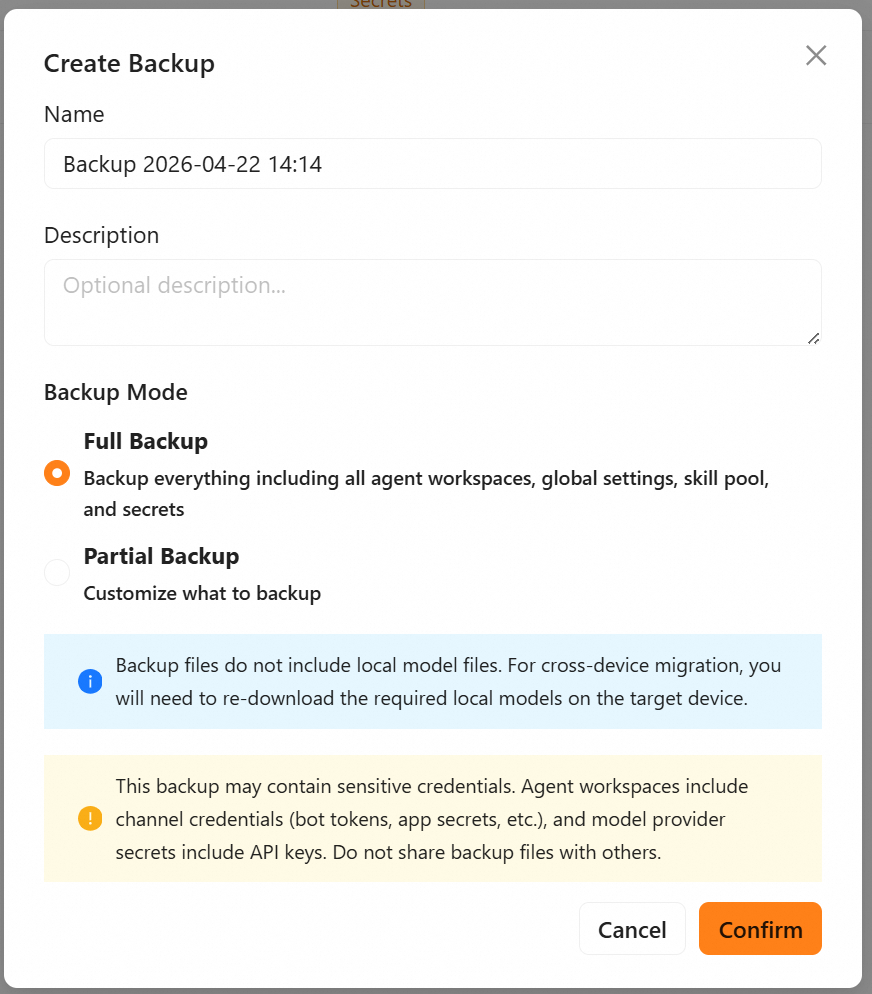
A full backup is best used as a complete snapshot:
- Click Create Backup in the top-right corner.
- Leave the dialog in Full backup mode (the default) — no options to tweak.
- Fill in the backup name and an optional description.
- Note the red sensitive-content warning — a full backup also packages the secrets directory.
- Click Create.
A partial backup is best for migrating only specific modules or syncing only a few agents:
- Click Create Backup and switch to Partial backup.
- Tick what you need:
- Agent workspaces: after enabling this, pick the specific agent workspaces to back up.
- Global settings: whether to include the global settings (i.e.
config.json). - Skill pool: whether to include the skill pool (i.e. the
skill_pool/directory). - Secrets: whether to include the secrets (i.e. the
~/.qwenpaw.secret/directory). Off by default; turning it on shows the same red sensitive-content warning.
- Fill in the name and description, then click Create.
⚠️ Restore is irreversible. Read the "Pre-restore backup" section before you proceed.
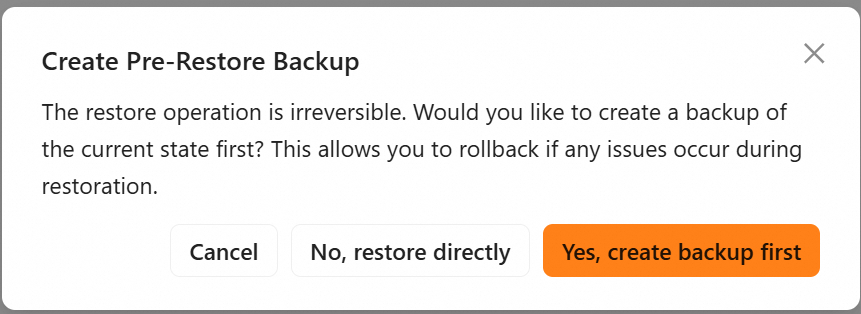
When you click the Restore button on any backup row, QwenPaw first opens the Pre-restore backup dialog:
- We strongly recommend ticking "Create a pre-restore backup first" to take a one-click snapshot of the current state.
- If anything goes wrong, you can immediately roll back to the state right before the restore using that snapshot.
| Mode | When to use | Behavior |
|---|---|---|
| Full restore | Roll back completely to the moment of the backup; full migration | Completely replaces the current instance with the backup contents (including the agent registry, global settings, skill pool, and secrets). |
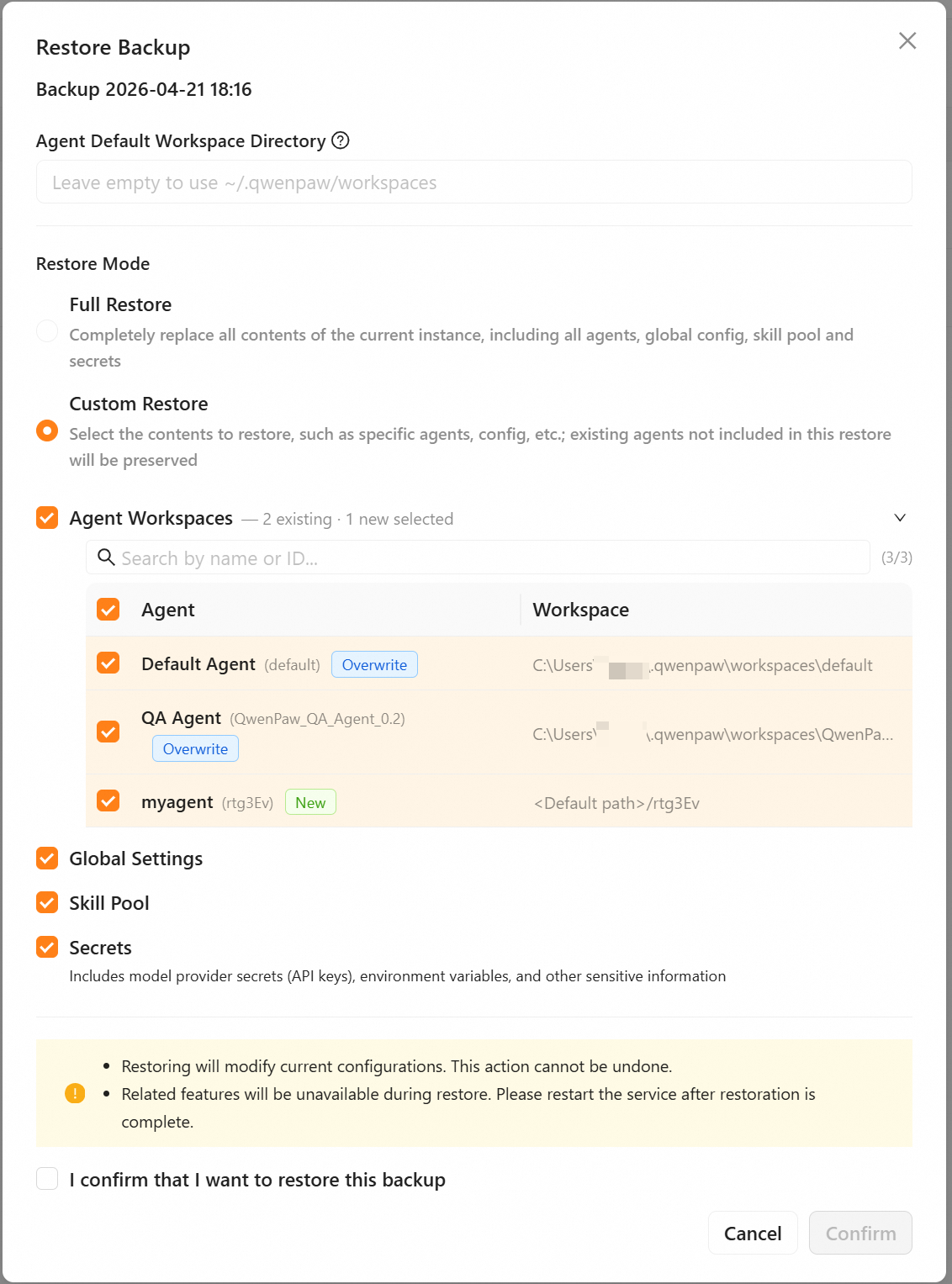
| Custom restore | Migrate only some modules; keep modules outside the restore scope | Pick per item which modules and which agents to restore; anything outside the restore scope is left untouched. |
Completely replaces the current instance:
- All agent workspaces in the current instance are overwritten by the agent workspaces contained in the backup.
- Global settings, skill pool, and secrets are replaced as well.
Steps:
- In the restore dialog, switch to Full restore.
- Manually tick "I confirm I want to restore this backup" as a second confirmation.
- Click Start restore.
Fine-grained control over what gets restored, to avoid accidental deletions:
- Pick agents one by one: restore only the agents you tick; agents outside the restore scope are kept as they are. You can also specify the default storage location for newly added agents at restore time; if unspecified, they go to
~/.qwenpaw/workspaces/<agent_id>/. - Global settings / skill pool / secrets: each can be toggled independently. If toggled on, it fully replaces the current instance's content.
Steps:
- In the restore dialog, keep Custom restore (the default).
- Fill in the default location for new agents (only when the backup contains agents not yet on this machine).
- Tick the agents you want to restore in the agent list.
- Decide whether to restore the global settings / skill pool / secrets.
- Click Start restore.
| Action | Description |
|---|---|
| Export | Click Export on a row to download the backup's .zip file — handy for archiving or moving it to another machine. |
| Import | Click Import Backup at the top of the page and pick a local .zip file. If the backup ID conflicts with an existing one, an overwrite confirmation appears — confirm to overwrite without re-uploading. |
| Delete | Delete a single backup or batch-delete by selection; the underlying zip file on disk is removed immediately. |
- Backup files may contain sensitive credentials: a full backup packages secrets by default (model API keys, the encryption master key, Console login credentials, etc.); even a partial backup contains channel credentials inside agent settings (e.g.
bot_token,app_secret). Keep your backup files safe and do not share them with others. - When migrating across machines, local model weights are not included — re-download the models you need on the target machine.
- Restart the service after a restore so the new configuration takes full effect.
| Scenario | Recommended action |
|---|---|
| Before a major version upgrade | Create a "Full backup" so you can roll back in one click if the upgrade goes wrong |
| Before risky/experimental changes | When clicking Restore later, tick "Create a pre-restore backup first" |
| Migrating only some agents | Create a partial backup with only the agents you need, and use Custom restore when restoring |
| Item | Path / Default |
|---|---|
| Backup directory | ~/.qwenpaw.backups/ |
| Single backup | <backup-dir>/<backup_id>.zip |
The backup directory inside a Docker container is /app/working.backups. If you deploy with Docker, you need to mount this directory to persist backup data — otherwise all backups will be lost when the container is recreated.
Add -v qwenpaw-backups:/app/working.backups to your docker run command:
docker run -p 127.0.0.1:8088:8088 \
  -v qwenpaw-data:/app/working \
  -v qwenpaw-secrets:/app/working.secret \
  -v qwenpaw-backups:/app/working.backups \
agentscope/qwenpaw:latestQ: Will the backup include local models I downloaded? A: No. Models are too large; backups only cover small assets such as configuration, skills, and memory. Re-download the models you need after migrating to a new machine.
Q: I see "Backup already exists" when importing — what should I do? A: QwenPaw shows an overwrite confirmation; confirm it to continue importing and overwrite the existing backup.
Q: What's the real difference between Full restore and Custom restore? A: Full restore restores the whole instance as it was at backup time — think of it as "delete the old instance → create a new one". Custom restore restores only the parts you select (e.g. some agents); anything outside the restore scope is kept as it is.
- Console — the Backup page lives in the "Settings" group
- Configuration & Working Directory —
config.json, working directory, environment variables - Multi-Agent — agent workspace structure
- Skills — relationship between the skill pool and per-agent skills